
Real-World Context & Developer Perspective

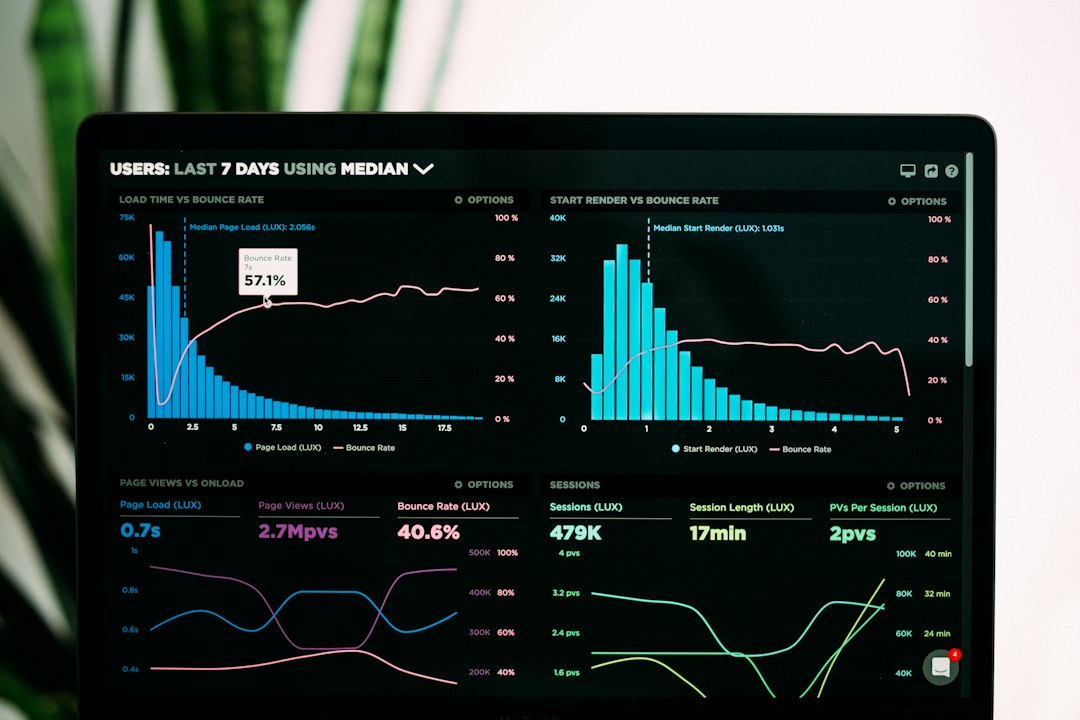
Last week a client shouted, "Checkout takes five seconds—cart's emptying fast." I dug in. The theme was a legacy multipurpose pack, plugins everywhere, host a cheap shared box. After a weekend of safe tweaks the same page hit 1.2 seconds. Bounce fell from 68 % to 32 %. Revenue spiked about 15 %.
Why does speed matter? Users decide in the first two seconds. If you're slower than the coffee-shop Wi-Fi, they bail. Google still factors speed into rankings, so SEO suffers. But WordPress owners fear breaking things; one rogue update can kill a custom post type, wipe a gateway, or render a theme blank.
Clients say "just make it faster." They don't want a full rebuild. They need a plan that respects the existing plugin ecosystem, keeps the design, and shows measurable gains. That's the tightrope: speed versus stability.
Architecture & Technical Prerequisites

Before you touch code, lock down the foundation. Here's my baseline checklist.
- PHP 8+ – JIT and huge speed gains over 7.x.
- MySQL 5.7+ (or MariaDB 10.3+) – older versions choke on modern queries.
- HTTPS – browsers prioritize encrypted sites in loading pipelines.
- A decent host – at least a VPS or managed WordPress; shared cheap hosts throttle CPU, killing caching.
- Staging environment – a production clone for
wp cliwork without risking live traffic.
File perms: 644 files, 755 dirs; wp-config.php often 640. Nightly backup of DB and wp-content is non-negotiable—I use UpdraftPlus.
Version control saves you. Push the whole site (except wp-config.php) to a private Git repo. When a commit breaks the build, you roll back instantly.
If a CDN or managed host is already in place, many later tweaks (gzip, object cache) may be handled. Then focus on what's left.
Step-By-Step Implementation: Core Setup
Start with low-risk, high-reward moves. The CLI is faster and less error-prone than the admin UI.
# Update core, themes, and plugins
wp core update
wp theme update --all
wp plugin update --all
Disable the default WP-Cron; it fires on every request and adds 200–300 ms.
# wp-config.php
define('DISABLE_WP_CRON', true);
Schedule a real cron job every 15 minutes:
*/15 * * * * curl -s https://example.com/wp-cron.php?doing_wp_cron > /dev/null
Install a lightweight caching plugin. I favor WP Rocket for simplicity; LiteSpeed shines on LSWS servers. Enable page caching, minify CSS/JS, and defer non-critical scripts.
# Install WP Rocket (requires premium)
wp plugin install wp-rocket --activate
Tell WordPress caching is on:
# wp-config.php
define('WP_CACHE', true);
Strip the emoji script; it adds an extra request and a tiny payload.
# functions.php
remove_action('wp_head', 'print_emoji_detection_script', 7);
remove_action('wp_print_styles', 'print_emoji_styles');
Run PageSpeed Insights. Note First Contentful Paint and Speed Index; you should see a jump from red to orange at least.
Advanced Configuration & Performance Tuning
Now we dive into server-level tweaks that shave the last few hundred milliseconds.
PHP-FPM pool settings
On a VPS edit /etc/php/8.0/fpm/pool.d/www.conf. Raise pm.max_children for traffic spikes; adjust pm.start_servers and pm.min_spare_servers accordingly. A typical 100 RPS site looks like:
pm = dynamic
pm.max_children = 50
pm.start_servers = 5
pm.min_spare_servers = 5
pm.max_spare_servers = 35
Restart PHP-FPM: systemctl restart php8.0-fpm.
OPcache configuration
OPcache stores compiled PHP in shared memory. Add to php.ini:
opcache.enable=1
opcache.memory_c
opcache.max_accelerated_files=10000
opcache.validate_timestamps=1
opcache.revalidate_freq=60
Warm cache cuts execution time dramatically.
MySQL tuning (or MariaDB equivalents)
On MySQL 5.7+ the query cache is gone, but InnoDB buffer pool size still matters. Set it to ~70 % of RAM if the DB shares the box:
innodb_buffer_pool_size = 2G # adjust for your server
innodb_log_file_size = 512M
On MariaDB enable the query cache:
query_cache_type = 1
query_cache_size = 64M
Restart MySQL after changes.
Image optimization pipeline
Images dominate payloads. Convert on upload to WebP with the WebP Converter for Media plugin, then lazy-load everything below the fold.
# functions.php
add_filter('wp_lazy_loading_enabled', '__return_true');
If you have a CDN, enable automatic WebP delivery there too. Expect a 30–40 % size drop without visual loss.
Dequeue unused scripts and styles
Themes and plugins ship assets you never use. In functions.php you can strip them. Example: remove Gutenberg block CSS on the front-end.
function dequeue_gutenberg_assets {
 wp_dequeue_style('wp-block-library');
}
add_action('wp_enqueue_scripts', 'dequeue_gutenberg_assets', 100);
Do the same for any heavyweight admin script that isn't needed on the front-end. Use wp_print_scripts to audit what's loading.
Custom.htaccess rules for gzip and expires headers
Compress HTML, CSS, and JS; tell browsers to cache static assets.
# GZIP compression
<IfModule mod_deflate.c>
 AddOutputFilterByType DEFLATE text/html text/css application/javascript application/json image/svg+xml
</IfModule>

# Browser caching
<IfModule mod_expires.c>
 ExpiresActive On
 ExpiresByType image/jpg "access plus 1 year"
 ExpiresByType image/jpeg "access plus 1 year"
 ExpiresByType image/gif "access plus 1 year"
 ExpiresByType image/png "access plus 1 year"
 ExpiresByType text/css "access plus 1 month"
 ExpiresByType application/javascript "access plus 1 month"
</IfModule>
These headers let repeat visitors load instantly.
With core updates, caching, and server tweaks in place you've shaved most of the lag from a typical WordPress site. Next we'll tackle database clean-ups, critical CSS extraction, and monitoring. Ready to keep the momentum? Check our WordPress Optimization service or drop a line at /contact for a custom audit.
Critical Production Pitfalls & Diagnostic Gotchas
Speed tweaks love to break what already works. The usual culprits? Theme overrides, plugin wars, hard-coded URLs, and bloated transients.
- Theme overrides – child-theme functions that hijack core hooks, or a parent theme that hard-codes script URLs.
- Plugin conflicts – two caching plugins, or a minifier that mangles a plugin's inline script.
- Hard-coded URLs – absolute URLs in CSS/JS that ignore
WP_HOMEand keep pointing to the old domain after a move. - Transients that overflow – a badly written plugin stores huge JSON blobs in the options table; the site slows down and eventually throws "WP_Error: Could not delete transient".
Here's a quick diagnostic checklist you can run on any live site without touching production code:
- Enable
WP_DEBUGandWP_DEBUG_LOGinwp-config.php. Then watchwp-content/debug.logfor PHP notices after each tweak. - Install Query Monitor. Look for:
- Queries that take > 100 ms.
- Duplicate queries (often a sign of a poorly cached loop).
- Hooks that fire more often than they should.
- Run the Health Check & Troubleshooting plugin in "Troubleshooting Mode". It temporarily disables all plugins and switches to a default theme for the current user only; if performance jumps, you know the bottleneck lives in your stack.
- Check the
wp_optionstable for transients with_transient_timeout_values far in the future. A quickSELECT option_name FROM wp_options WHERE option_name LIKE '%_transient_%' AND option_value > UNIX_TIMESTAMPwill expose the offenders.
If you hit a wall, roll back safely:
- For plugins, use WP Rollback. One click pulls the previous version from the repo.
- If you version-control your theme or custom code, a
git revert HEAD~1(or whatever commit introduced the change) restores the previous state instantly. - Never skip a full database backup before you start.
wp db exportto a dated file is cheap insurance.
Follow the checklist, keep logs, and you'll know exactly which lever caused the regression before you even push the change to production.
Comparison & Decision Matrix
Not every site needs a full-stack overhaul. Below is a responsive HTML table you can drop into the final post. It contrasts three common road-maps and helps you pick the sweet spot between effort, cost, risk, and speed gain.
| Approach | Effort | Cost | Risk | Typical Speed Gain | When to Choose |
|---|---|---|---|---|---|
| Plugin-only | Low – install, configure, test | Free-to-$50/mo (premium plugins) | Medium – plugin conflicts, over-minification | 15-30 % LCP improvement | Small blog, limited dev resources |
| Server-level + CDN | Medium – tweak PHP/FPM, add CDN, adjust DNS | $20-$150/mo (managed host, CDN) | Low-Medium – mis-configured cache headers can break assets | 30-50 % LCP improvement | Mid-size shop, traffic spikes, global reach |
| Full-stack (code + server) | High – audit code, refactor, add server optimisations | $100-$500/mo (premium hosting, dev time) | High – any change can affect theme or plugin behavior | 50-70 % LCP improvement | Enterprise site, SLA requirements, long-term growth |
Pick the row that matches your budget and risk appetite, then follow the steps in Part 1 to implement it safely.
Comprehensive FAQ
Can I use a caching plugin on a managed host?
Yes, but read the host's docs first. Many managed WordPress providers (Kinsta, WP Engine) already run page caching at the server level; adding a plugin on top can cause double-caching, which leads to stale pages or "ERR_CACHE_MISS". If you must install one, disable the host's built-in cache for the same URLs and enable the plugin's "Cache only for logged-out users" mode.
What's the safest way to minify CSS/JS?
Start with a plugin that offers "inline only" minification, like Perfmatters. It leaves external files untouched, so you can verify the site works, then flip the "minify files" toggle. If you prefer a build-step, add gulp-clean-css and uglify-es to your theme's package.json and run them on a staging branch. Commit the minified assets, then push to production – no runtime minification, zero CPU overhead.
How do I know if my theme is the bottleneck?
Run Query Monitor with the theme active and note the "Template Loader" section. If you see > 30 queries just to load header.php, that's a red flag. Also, enable Health Check "Troubleshooting Mode". If performance jumps to "good" when the theme is swapped for a default one, you've isolated the problem. Look for:
- Large
functions.phpfiles that hook intoinitunnecessarily. - Hard-coded
wp_enqueue_scriptcalls that load the full jQuery bundle on every page.
Refactor those into conditional loads or move them to a custom plugin.
Do I need a CDN for a regional audience?
Not always. If most visitors come from a single city, a well-tuned server in the same data center can beat a generic CDN. However, a CDN still helps with static assets (images, fonts) and shields you from traffic spikes. Test with curl -I https://yourdomain.com/wp-content/uploads/… from a remote location; if latency is > 200 ms, a CDN will shave off a noticeable chunk of your LCP.
Will disabling Gutenberg improve speed?
Only marginally. Gutenberg adds a few extra JS bundles (~ 400 KB) that load on the editor screen, not the front-end. If you never use the block editor, disable it with add_filter('use_block_editor_for_post_type', '__return_false');. The real gain comes from removing the wp-block-library CSS if your theme doesn't use any core blocks. That alone can cut ~ 30 KB of CSS, which helps on 2G connections.
Operational Verification Checklist & Next Steps
- Take a full site backup (files + DB). Store it off-site.
- Push changes to a staging clone. Run Lighthouse and record LCP, FCP, and Total Blocking Time.
- Deploy to production. Run Lighthouse again after cache warm-up. Compare numbers; aim for at least a 15 % improvement over the baseline.
- Monitor
error_logandwp-content/debug.logfor 48 hours. Look for "PHP Fatal error" or "Transient … overflow". - Set up a weekly cron that runs
wp cron event run --due-nowand logs execution time – catches regressions early.
Next steps? Schedule a quarterly performance audit, enable automatic plugin/theme updates (but keep the health-check "auto-update test" on), and talk to your host about a performance SLA – e.g., "99 % of pages must load under 2 seconds". Need hands-on help? Our Web Engineering team can design a custom SLA and keep the site humming.
Ready to put the plan into action? Drop us a line at Contact and we'll walk you through the first rollout.